Health Check · Accessibility
Find default alt text like “Oval 1” in a Storyline course
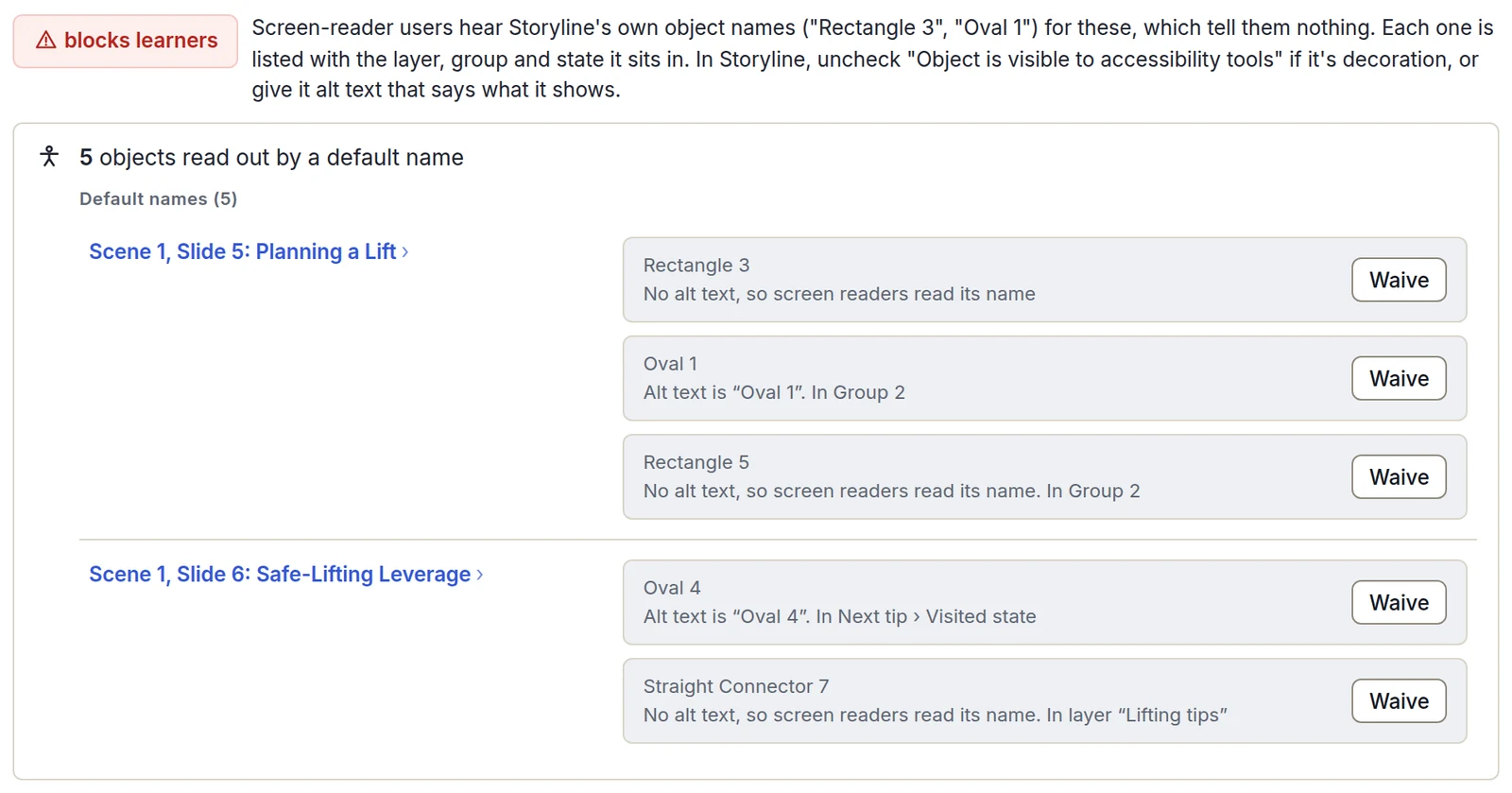
Drop in a .story file and get every object a screen reader reads out by a Storyline default name, like “Oval 1” or “Rectangle 3”, with the slide, layer, group and state each one sits in.
Free on your own file, no account needed.
Where “Oval 1” comes from
- Storyline names every new object by its type and a number: Rectangle 3, Oval 1, Group 2.
- When a shape has no alt text, screen readers read that name, so a decorative shape left visible to them is announced as “Rectangle 3”. Articulate’s alt text article describes this.
- Alt text can be left as a default name too. It then shows up in Storyline’s translation export, where translators and clients see it.
- Storyline’s search doesn’t look in alt text, and many of these shapes sit inside groups or a button’s states, so finding them by hand means clicking through every slide.
What Health Check lists
- Alt text still set to a Storyline default name, like “Oval 1”
- Shapes with no alt text whose name is still the default, which screen readers read out
- Where each one is: slide, layer, the groups it sits in, and the button state it was added to
- A Waive button for each one you’ve checked and are leaving as is
- The whole list in the accessibility work list CSV, ready to hand off
- Search for any alt text, in one course or across a whole folder in Batch Check
Left out: objects hidden from screen readers and anything inside a hidden group, text boxes and shapes with text (screen readers read the text), and quiz parts, which Storyline names from the choices. A clickable shape with only a default name is listed under clickable objects with no name instead.
What StoryAudit checks, and what it leaves to you
- Flagged: an object screen readers can reach that would be announced by a default name, from its alt text or, when it has none, from its timeline name.
- Left to you: whether each one is decoration to hide or something that needs a description. The file doesn’t say what a shape is for.
How to fix one in Storyline
- Decoration: right-click it, choose Accessibility, and uncheck “Object is visible to accessibility tools.” The accessibility icon on its row in the timeline does the same.
- Something that matters: in the same window, type alt text that says what it shows or does.
- Several on one slide: Home › Focus Order lists the slide’s objects with their alternative text. Edit it there, or select a decorative one and click Remove to hide it from screen readers.
- Inside a state or a group: the location in StoryAudit names the button and state, or the group, so you know where to open it.
How it works
- 1Open StoryAudit and drop in your .story file.
- 2In Health Check, open Accessibility.
- 3Go to “objects read out by a default name.” Each one shows its slide, layer, group and state. Download the work list as a CSV to hand off.
To find any alt text, type a word like “Oval” into Course Docs search, or into Batch Check’s content search for a whole folder. Each match names the object it’s on, including objects hidden from screen readers.
Health Check runs free on your own .story file, with no account. Searching alt text and downloading the CSV need a free trial.