Guide · Translation Check
Storyline XLIFF import error
The translation came back and Storyline won't import it, or imports it with text missing. The cause is usually inside the XLIFF, and you can find it before you try again.
Translation Check runs free on your own file. No signup, and no .story file needed.
What the import needs
Storyline exports the course text as XLIFF 1.2 or 2.0 (File → Localization → XLIFF/Word Translation → Export), and imports the translated file the same way into a copy of the project. It matches each segment to the course by its ID and reads the file as XML, so the IDs, the tags and every character have to survive translation.
When the import fails
- Unsupported XLIFF FileTranslation Check
A character or tag that isn't valid XML
Storyline reads the file as XML, so one bad character stops the import: a bare
&or<, an HTML entity like that XML doesn't define, or a tag a translation tool added.Fix: Correct the character or tag in that segment. Translation Check names the segment.
- Translation Check
Formatting tags changed
Storyline writes bold, italics and other formatting as inline tags with IDs. A translator or tool that drops, adds or edits them returns a file that loses its formatting or won't import.
Fix: Put the tags back exactly as exported. Translation Check lists missing, extra and changed tags.
- The document target language should be present only when Target elements are presentText editor
No target language in the header
The file has translations but no target language declared:
trgLangin XLIFF 2.0,target-languagein 1.2. Unfinished vendor exports are the usual cause.Fix: Add the target language to the file's header, or ask the vendor to export again.
- Vendor
The XLIFF version changed
Storyline exports XLIFF 1.2 or 2.0. Some translation tools only accept one version, or save the file back in another.
Fix: Export the version your vendor's tool supports, and import back the same version.
When it imports but looks wrong
- Translation Check
Some text is still in the source language
Segments came back empty or unchanged, or the course was edited after the export, so some text no longer matches.
Fix: Fill the empty segments. If the course changed, export again, translate the new text and import that file.
- Translation Check
A %Variable% shows as text
A reference like
%UserName%was translated, split or dropped. The import works and the slide shows the raw reference or a blank.Fix: Restore the reference exactly as it appears in the source.
- Translation Check
Text runs out of its box
Translations often run longer than English, and a fixed text box clips them.
Fix: Shorten the translation or resize the box after import. Translation Check flags segments much longer than their source.
Before you import
- Import into a copy of the course, and don't edit the course between export and import.
- Run the returned file through Translation Check and fix what's flagged.
- After the import, check text fit on every slide. Captions aren't in the XLIFF, so translate and import them separately.
Find it before Storyline does
- 1Drop the translated XLIFF into Translation Check.
- 2Fix the flagged segments.
- 3Import the file into Storyline.
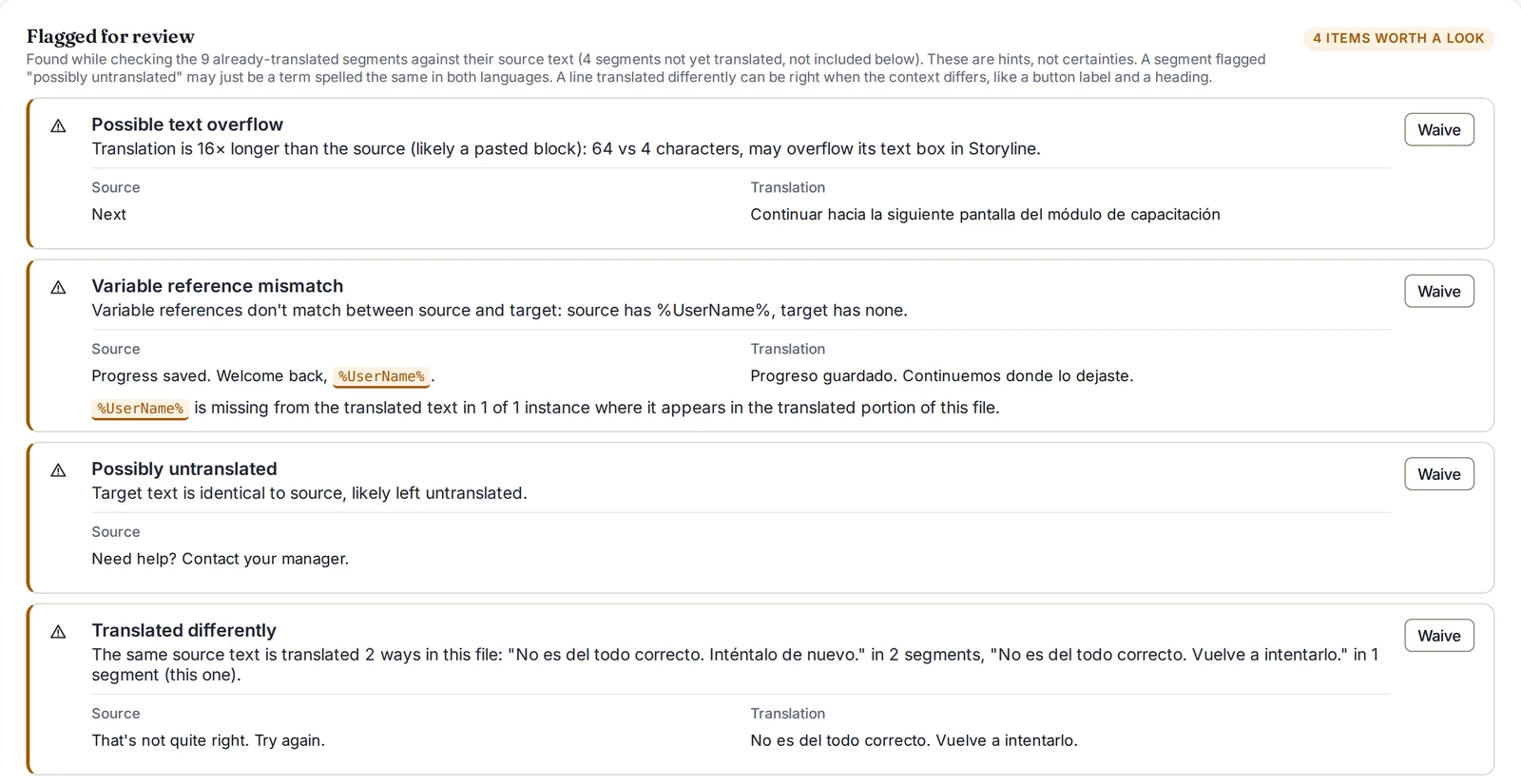
Translation Check needs only the XLIFF file. No .story file and no Storyline license.